Start here
How Minivan puts school and sports on one calendar
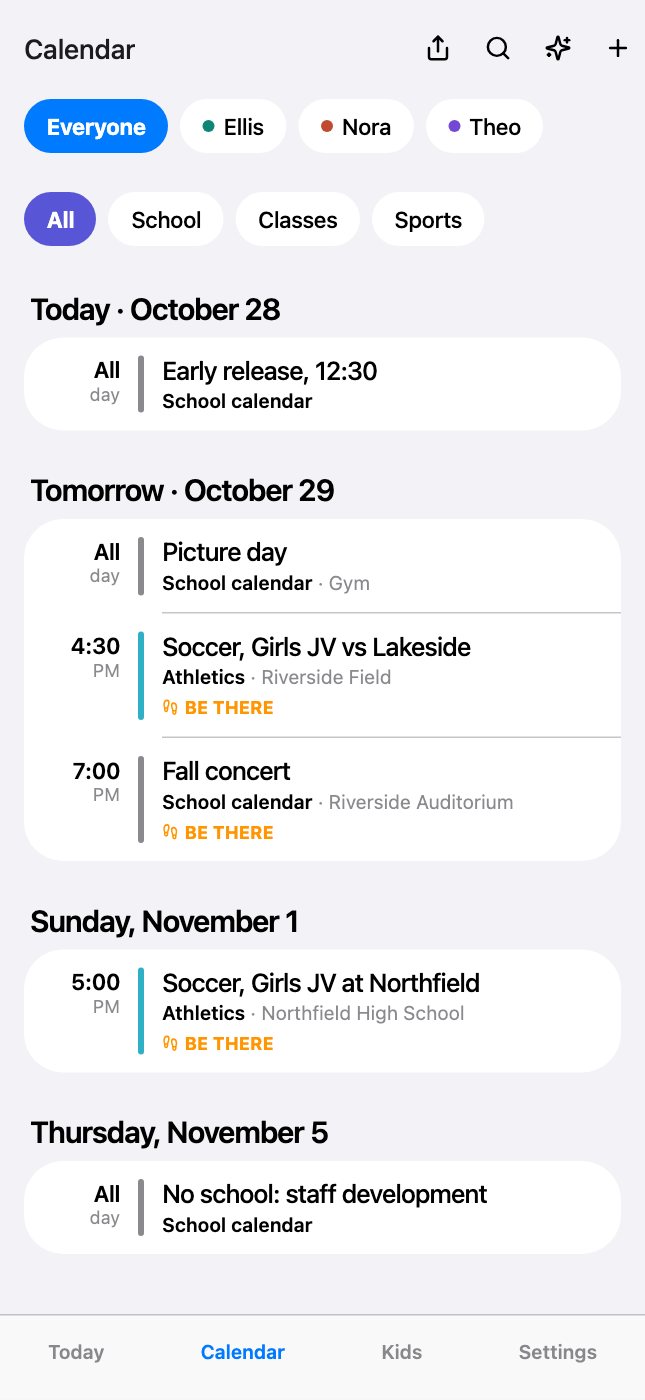
Every source (school apps, school calendars, teams, your own calendars) lands in one list, tagged to the right kid.
Updated November 20, 2026
Every source, one list
Minivan reads four kinds of sources and merges them into one calendar, newest changes first:
- School apps: assignments and due dates, grades, attendance and messages from Skyward, Infinite Campus, Schoology, ParentSquare and Bound.
- School calendars: days off, early releases, conferences, concerts and picture day, from each school’s public calendar.
- Teams: every practice, game and tournament from SportsEngine, Sprocket, Crossbar, TeamSnap, GameChanger, LeagueApps, PlayMetrics and any app with a calendar link, or from a photo of the schedule.
- Your own calendars: the Google, iCloud and Outlook calendars on your iPhone, if you choose to include them.
Tagged to the right kid
Each item is tagged with the kid it’s for, in that kid’s color. A team or calendar you add is set for one kid, several, or the whole family. A school app’s students are matched to your kids once (Settings → Kids & Connections). School-wide items, like a snow day, are for everyone at that school.
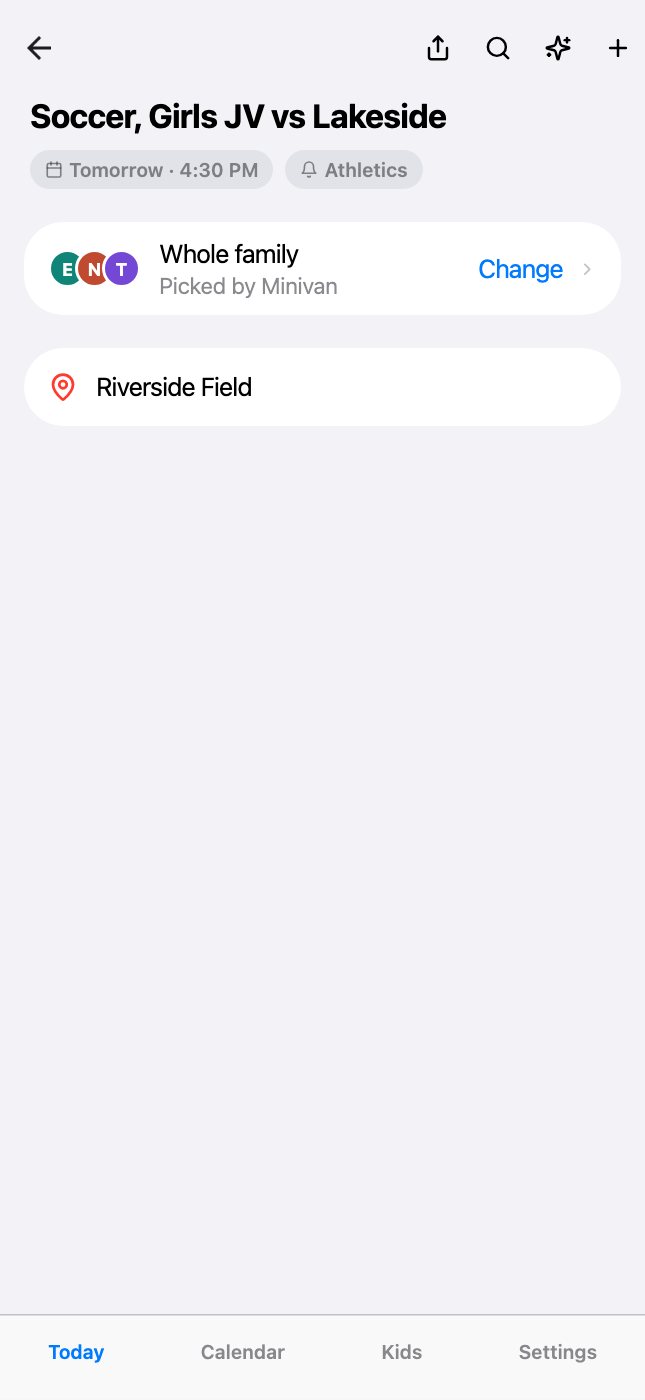
Minivan AI can also read a post and tag it with the kid it mentions (“3rd grade field trip”). You can change who any item is for: open it and tap Change.
Filter it your way
At the top of Calendar, tap a kid to see just their week, or Everyone. Then All, School, Classes or Sports to narrow it down. Search finds anything across every source.
Today puts it in order
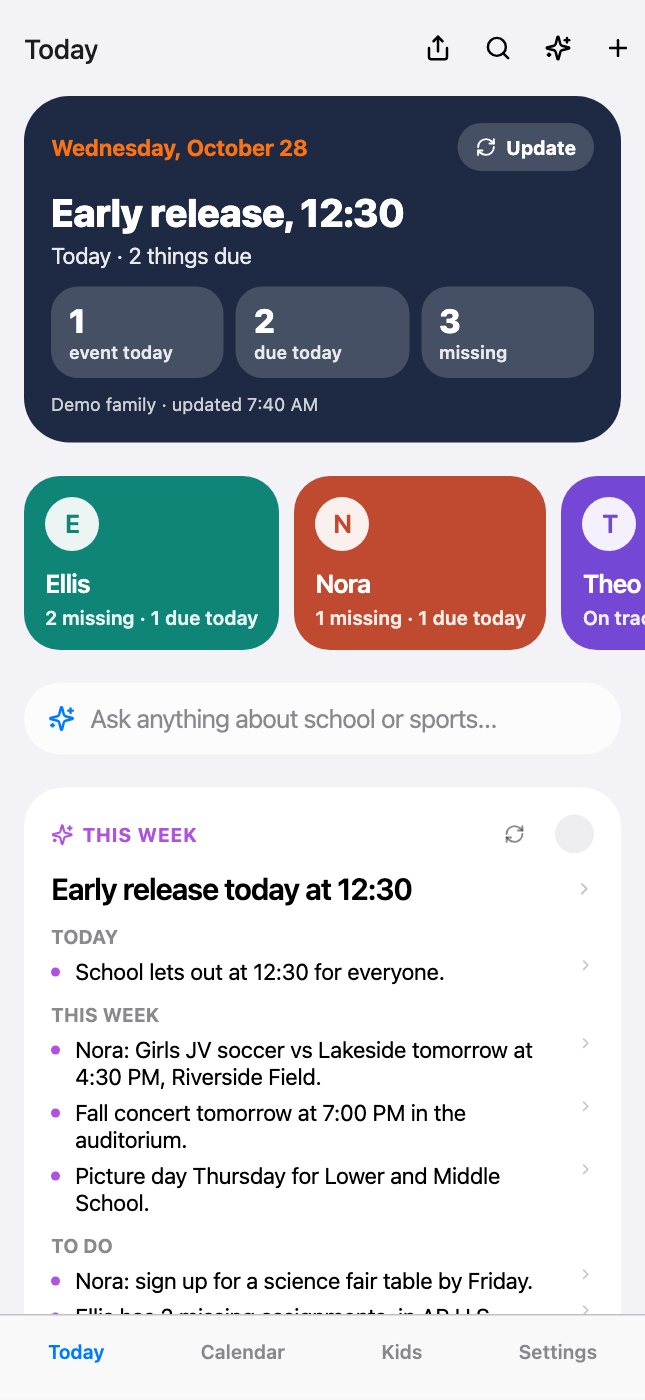
Today reads all of it and leads with what matters this morning: an early release, what’s due, what’s missing, and where to be later. Each kid’s card shows their missing work and what’s due today. Today & tomorrow lists the next 48 hours from every source.
It keeps itself current
Minivan checks every source in the background, several times a day, and when you pull to refresh or tap Update. A changed game time or a new assignment shows up without you doing anything.
← All help · FAQ · Questions? support@getminivan.com