Start here
Getting started with Minivan
Install, add your kids, connect their school apps and teams, and invite the other parent: about ten minutes.
Updated November 20, 2026
What Minivan is
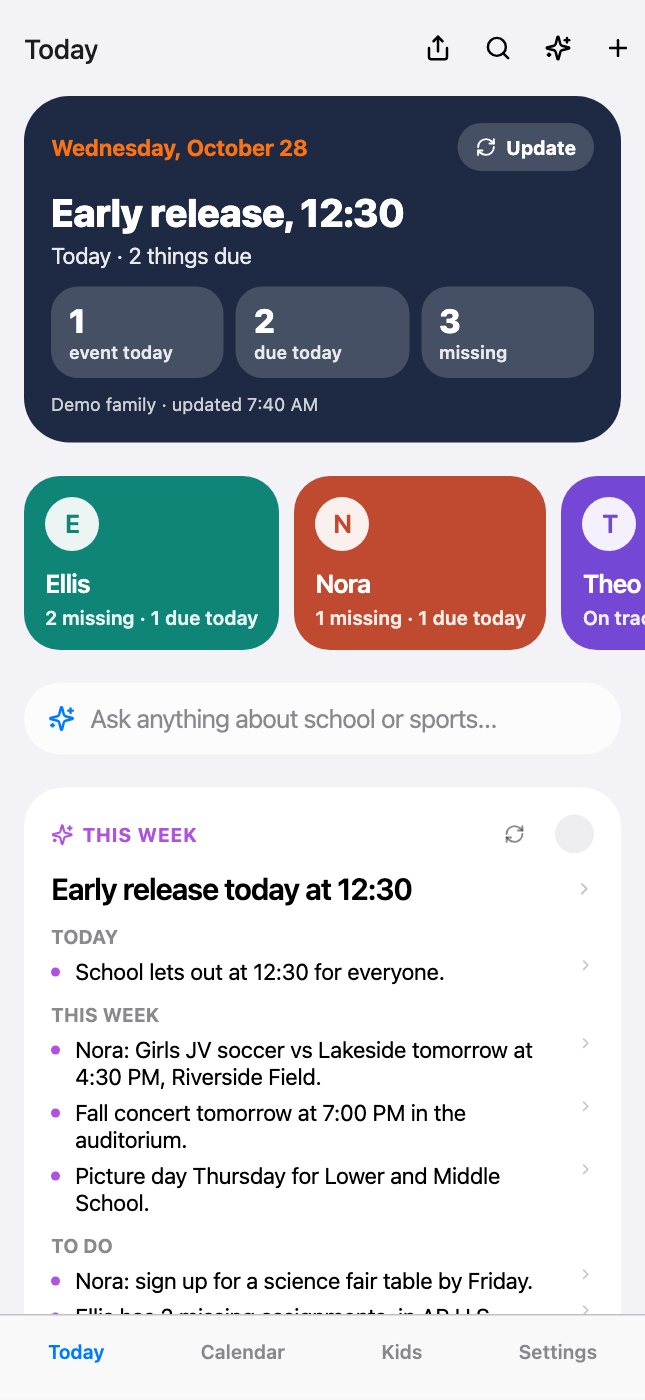
Minivan is an iPhone app that puts your kids’ school apps, their sports teams and your family calendar in one place. It reads grades, missing work, school messages and calendars from the apps your schools already use, adds every practice and game from the apps your teams use, and sorts it all by kid.
You don’t replace any app. You sign in to each one once, on your phone, and Minivan keeps up with them for you.
Set up in four steps
- Download Minivan from the App Store. You can look around the demo family first: tap “Try the demo family first” on the welcome screen.
- Create your account with your email. Minivan emails you a sign-in code (tap Copy code in the email, or pick it from the keyboard); there’s no password.
- Add each kid: first name, grade and school. Search for the school or district by name. If yours isn’t listed, add it and the web addresses of the apps it uses.
- Connect the school apps and add the teams: Settings → Apps & Calendars for school, and the + button (or Settings → Add a team, photo or calendar) → Follow a sports team for sports.
Sign in or create your account
An account is optional: without one, Minivan still reads your school apps on this iPhone. With one, the other parent’s iPhone shares your family and kids, and your subscription goes with you. New and returning parents use the same screen.
- On the welcome screen, tap Sign up with email (or Sign in at the top if you’ve used Minivan before). Continue without an account skips this; you can sign in later from Settings.
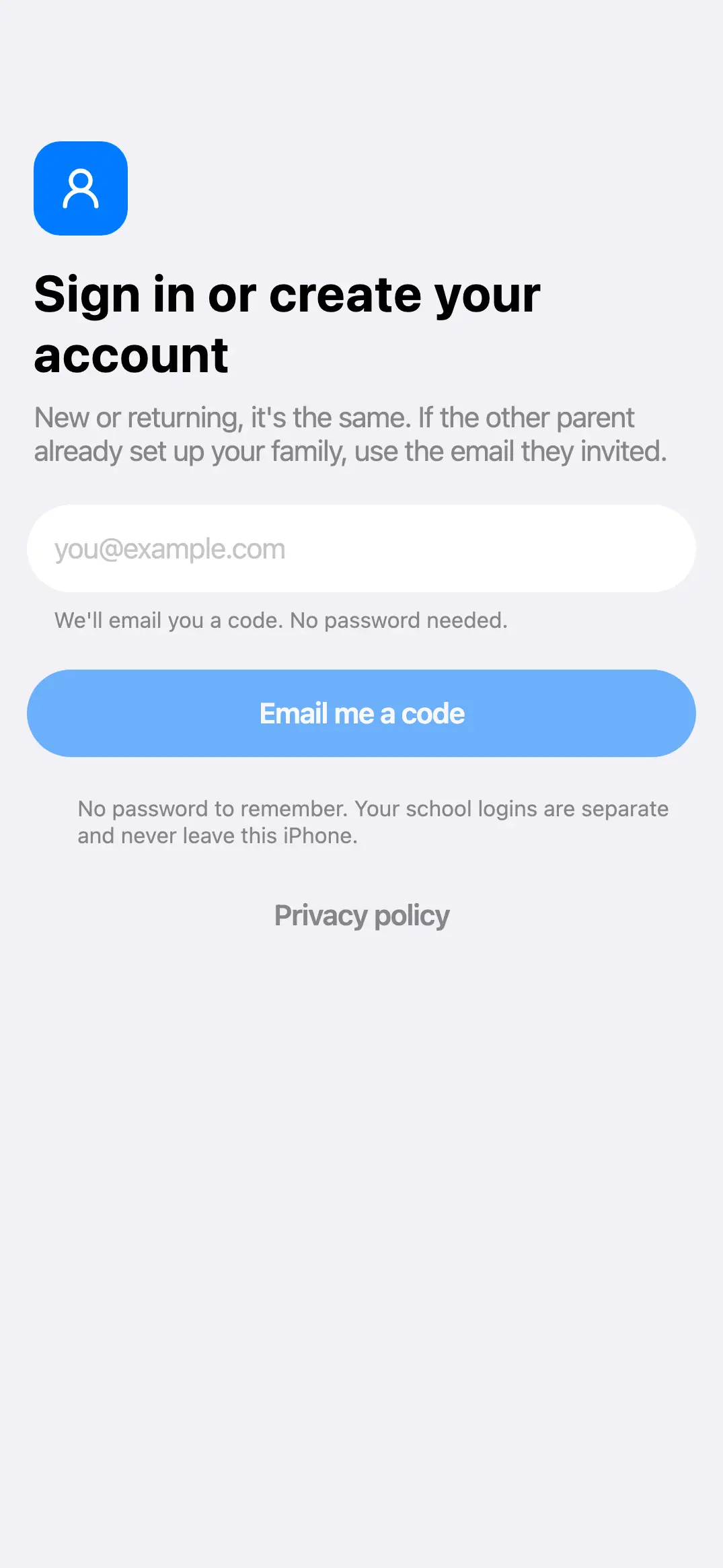
- Choose Sign in with Apple or Google for one tap, or type your email and tap Email me a code. If the other parent already set up your family, use the email address they invited.
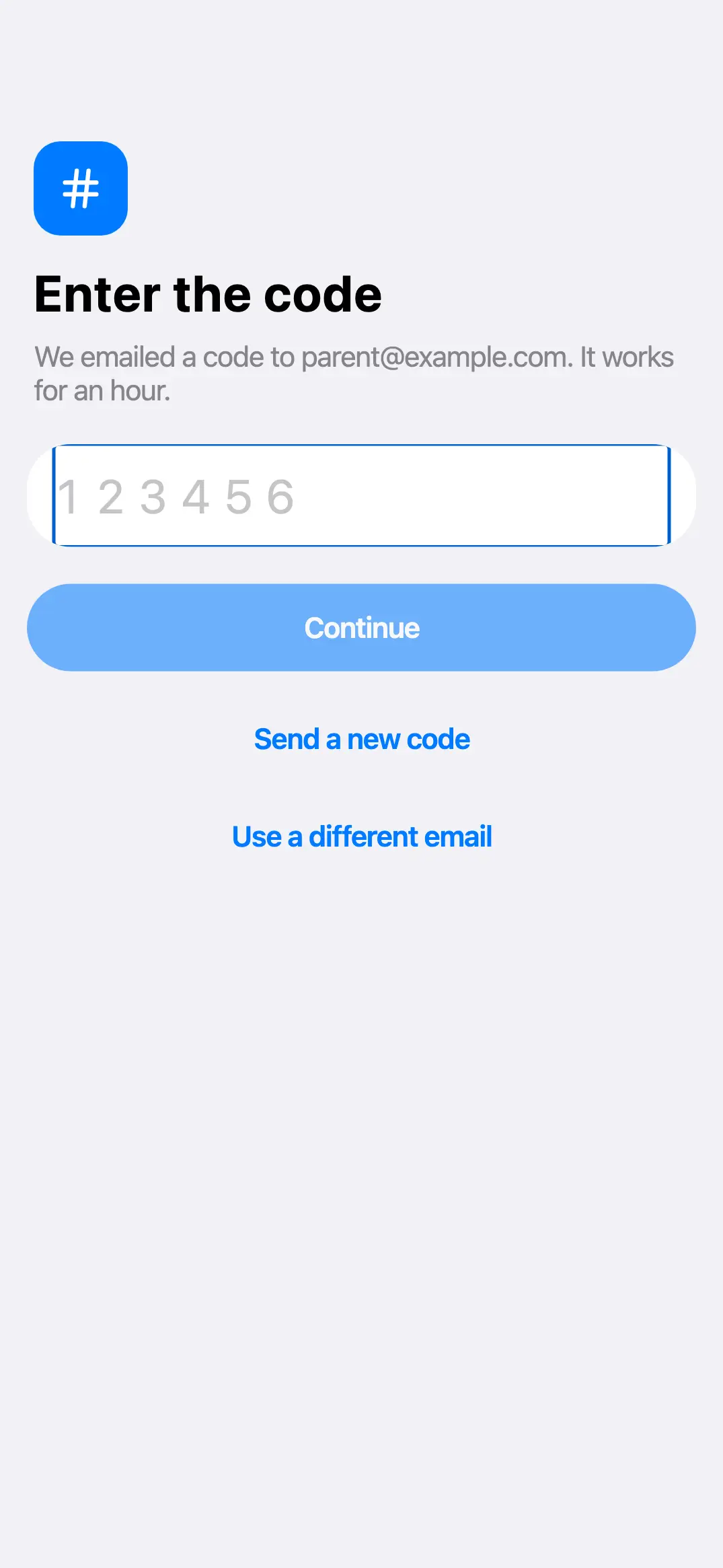
- Open the email from Minivan and copy the six-digit code (or pick it from the keyboard’s suggestion). Type it in and tap Continue. The code works for an hour; Send a new code gets a fresh one.
The setup screens
Setup takes four short steps. Your 14 free days start when you finish them.
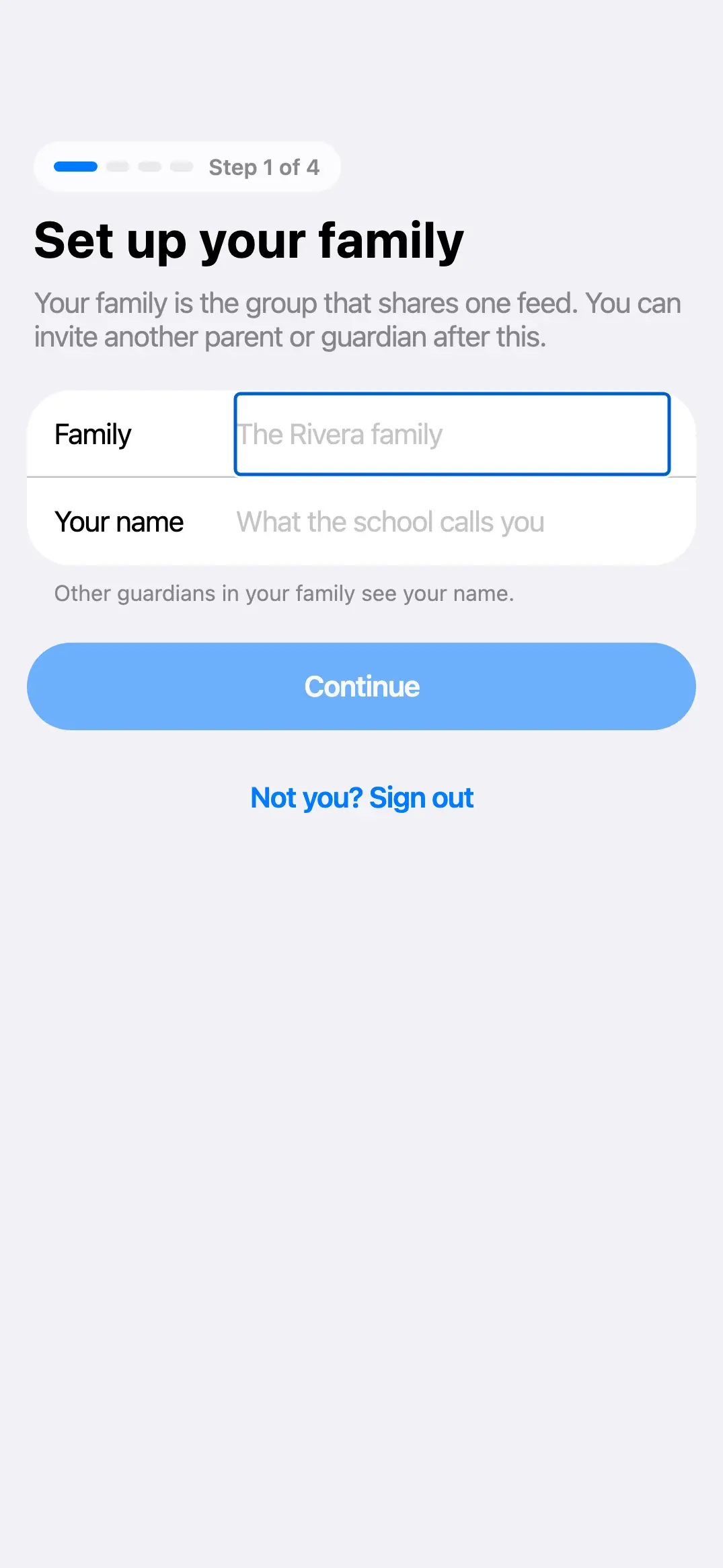
- Set up your family: a family name (like “The Rivera family”) and your name, which the other guardians see.
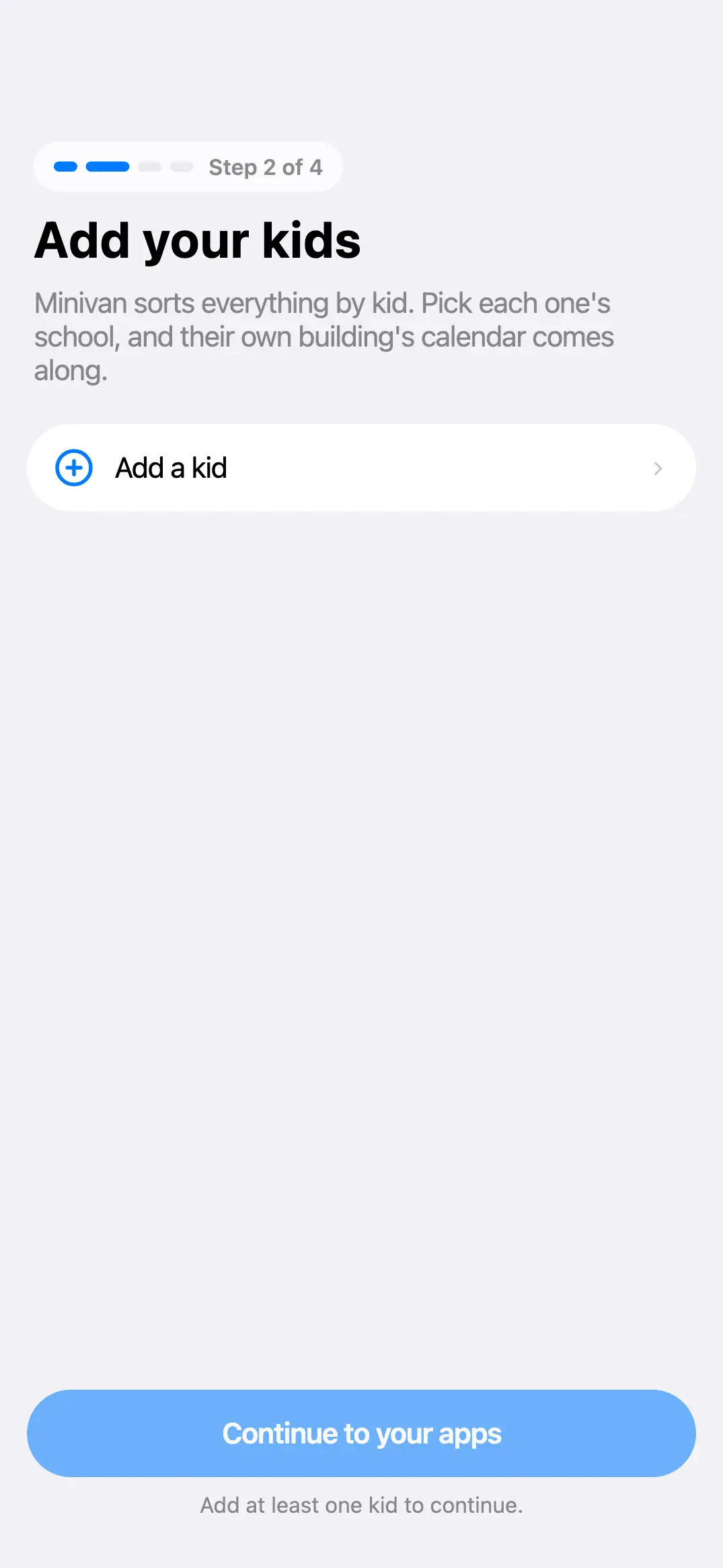
- Add your kids: tap Add a kid for each one, with first name, grade and school. Picking the school brings that building’s calendar along. You need at least one kid to continue.
- Your school’s apps: connect the apps the school uses (Skyward, Infinite Campus, Schoology, ParentSquare, Bound) with your own login. You can also do this later in Settings → Apps & Calendars.
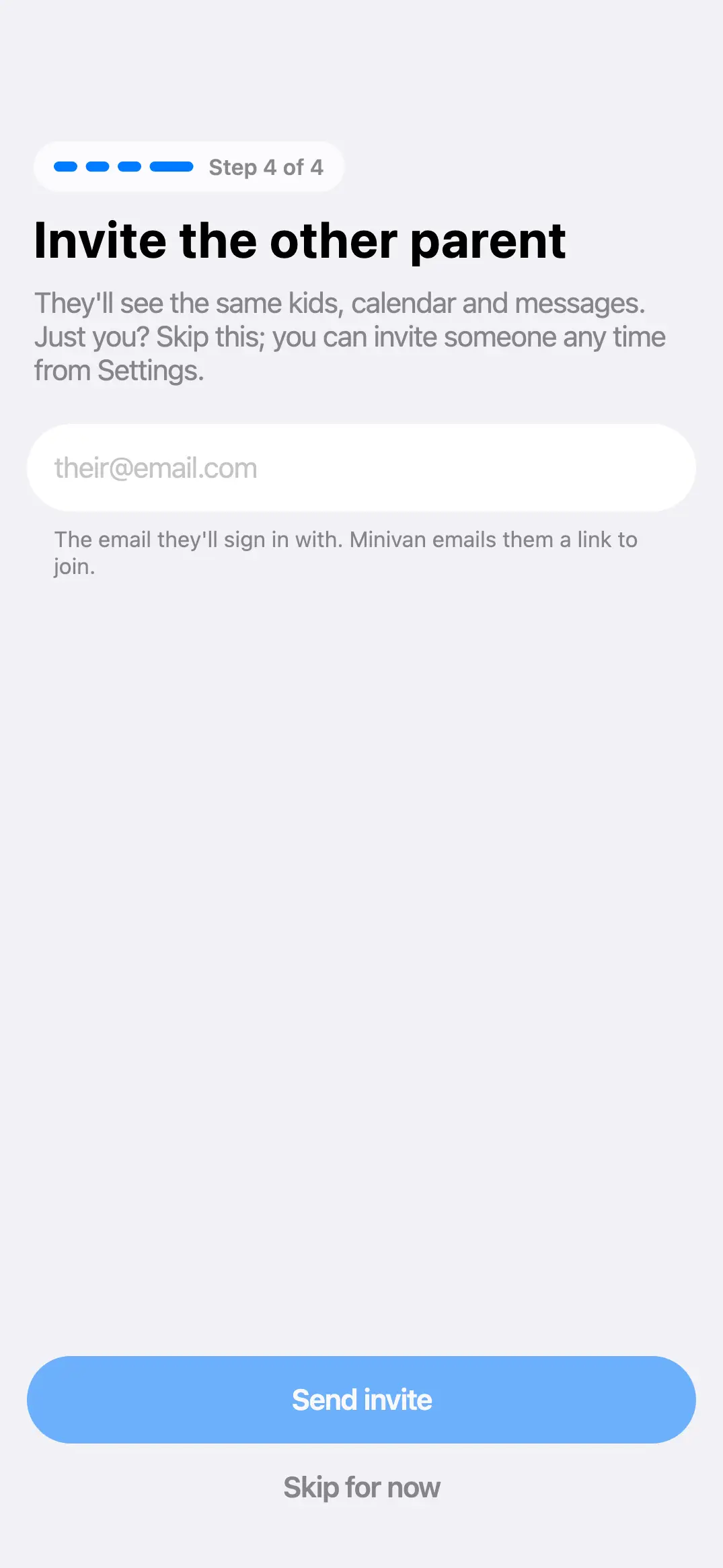
- Invite the other parent: type the email they’ll sign in with and tap Send invite, or Skip for now.
Permissions Minivan asks for
Minivan asks for each one only when you use the feature that needs it, and works without any of them.
| Permission | Why Minivan asks |
|---|---|
| Notifications | The morning summary, new grades, missing work, school posts, lunch money and game reminders you turn on. |
| Calendars | To show the iPhone calendars you pick next to school events, and to add scanned events to your calendar when you ask. |
| Photos | To read a photo of a schedule or flyer you choose and add its events. |
| Camera | To take a photo of a schedule or flyer and add its events. |
| Background App Refresh (iPhone setting) | So Minivan can update school apps and teams while it’s closed. |
You can change any of these later in the iPhone Settings app → Minivan.
Then share it
Settings → Invite the other parent. They get an email, join your family, and see the same kids, teams and calendars. Each parent signs in to school apps on their own phone.
What it costs
Minivan is free: every kid’s school apps, calendars, grades, missing work, lunch and teams. Minivan Plus adds the AI brief, Ask, summaries, photo scan and alerts for $4.99 a month or $39.99 a year, free for 14 days after setup. One subscription covers the whole family, both parents. The demo family is always free.
← All help · FAQ · Questions? support@getminivan.com