School
Match students, teams and calendars to kids
Kids & Connections says who each school app student, team and calendar is, so every post and event is tagged with the right kid.
Updated November 20, 2026
Why it matters
A school app knows its own students; Minivan knows your kids. Kids & Connections links the two once, so every grade, post and game lands on the right kid’s card, in that kid’s color. Posts and events are tagged from these matches first, before anything else.
Open it
Settings → Kids & Connections, or the Kids tab → Kids & Connections.
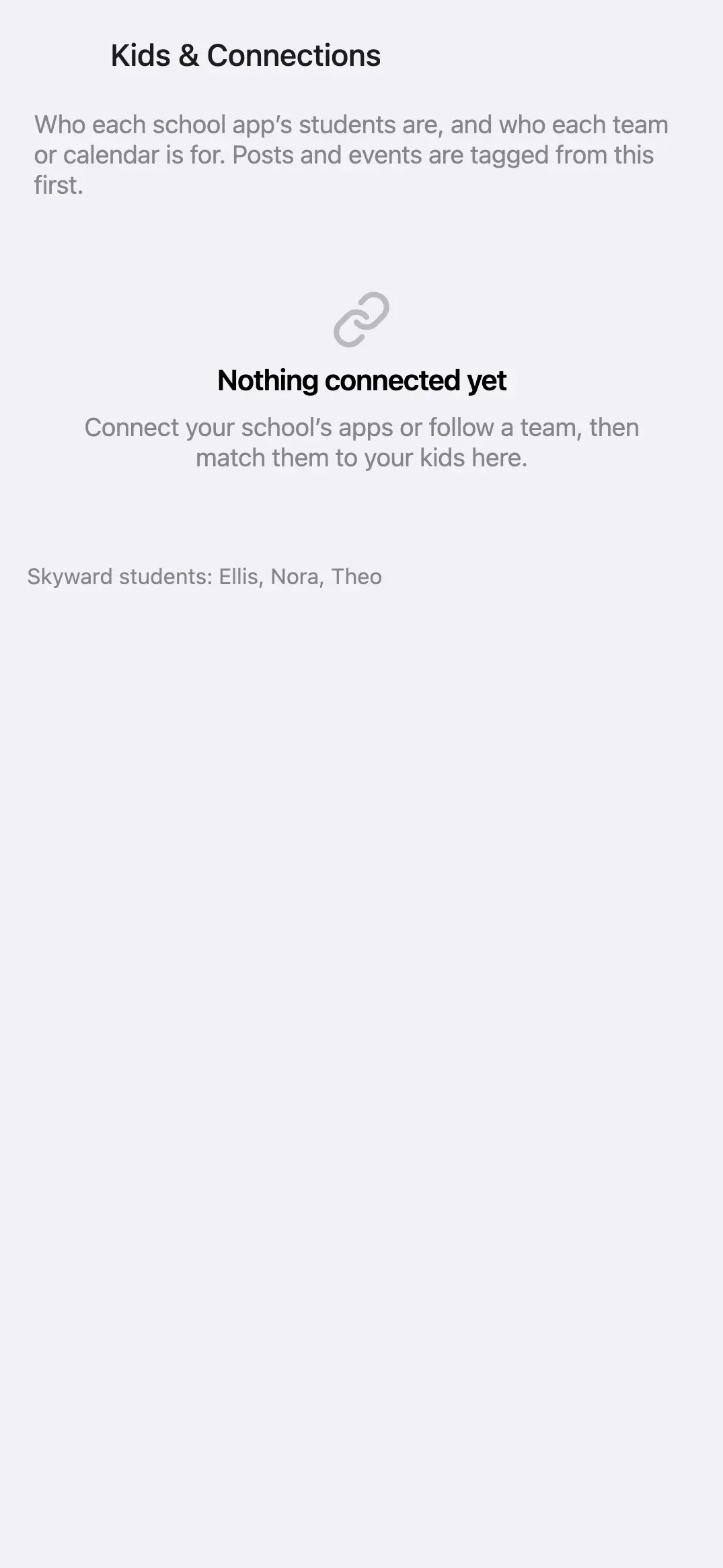
Match each connection
- Under each school app, tap a student and pick which of your kids it is.
- Under each team or calendar, choose the kid it’s for, several kids, or the whole family.
- Close the screen. New posts and events use the matches right away.
If it says Nothing connected yet, connect a school app (Settings → Apps & Calendars) or follow a team first. If it says Add your kids first, add them in Settings.
Fix one item
If a single post or event is tagged with the wrong kid, open it and tap Change next to who it’s for. That fixes that item only; change the match here to fix everything from that source.
← All help · FAQ · Questions? support@getminivan.com