School
Connect your school apps
Sign in once to Skyward, Infinite Campus, Schoology, ParentSquare or Bound; links to every other school app.
Updated November 20, 2026
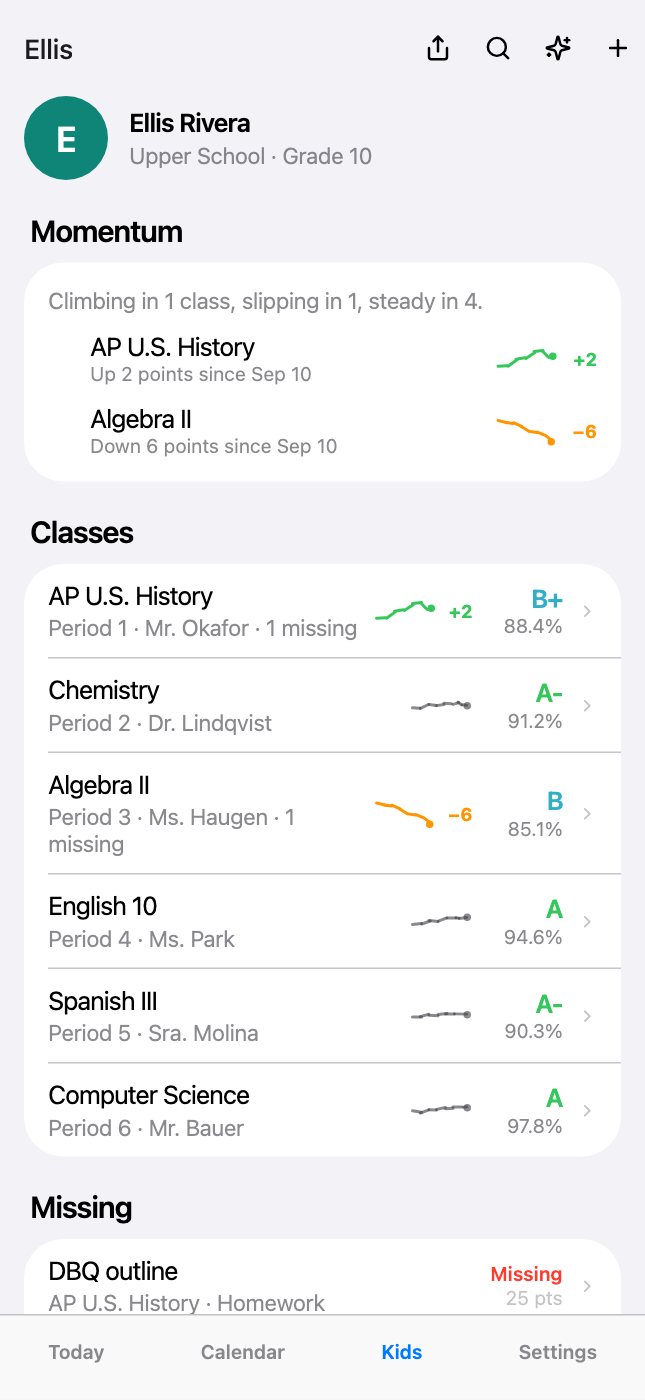
Apps Minivan reads
Any other app your school uses (lunch, payments, forms) appears as a link, so it’s one tap away.
- Skyward (Qmlativ): classes, grades, assignments, missing work, attendance.
- Infinite Campus (Campus Parent): classes, grades, assignments, attendance.
- Schoology: courses, assignments, grades and updates.
- ParentSquare: school and class posts and messages.
- Bound: school athletics, games and practices.
Connect one
- Settings → Apps & Calendars.
- Pick the school, then the app.
- Sign in with the same login you use on the school’s site.
- Match the app’s students to your kids if Minivan asks.
Your logins stay on your iPhone
Logins are saved in the iPhone’s Keychain and used only to sign in to the school’s app from your phone. They are never sent to Minivan or stored on a server.
If a login stops working
Check it on the school’s own site first; schools sometimes reset passwords. Then Settings → Apps & Calendars → the app → connect again. Accounts that need a security code or a Google or Microsoft sign-in can’t be connected yet; they show as links.
← All help · FAQ · Questions? support@getminivan.com