Troubleshooting
Troubleshooting
Fixes for sign-in codes that don’t arrive, school apps that won’t connect, stale updates, missing notifications and a subscription that isn’t recognized.
Updated November 20, 2026
The sign-in code email didn’t arrive
- Wait a minute, then check Junk, Spam and (in Gmail) Promotions for an email from Minivan.
- Make sure the address on the code screen is right. If not, tap Use a different email.
- Tap Send a new code and use only the newest code. Each code works for an hour.
- Still nothing? Use Sign in with Apple or Google instead, if that’s the email your family uses.
If you were invited by the other parent, sign in with the exact address the invite went to, or the invite won’t match.
The code says it’s wrong or expired
Codes expire after an hour, and a new code replaces the old one. Tap Send a new code, then type the newest one (or pick it from the keyboard’s suggestion above the number pad).
Minivan signed me out
If Settings shows Sign in to Minivan again, sign in with the same email or the same Apple or Google account as before. Your family, kids and subscription are still in your account, and your school logins and school data never left this iPhone. Signing in with a different address creates a new, empty account; if that happened, sign out (Settings → Sign out of family account) and sign in with the original address.
A school app won’t connect
- Check that the same username and password work on the school’s own website.
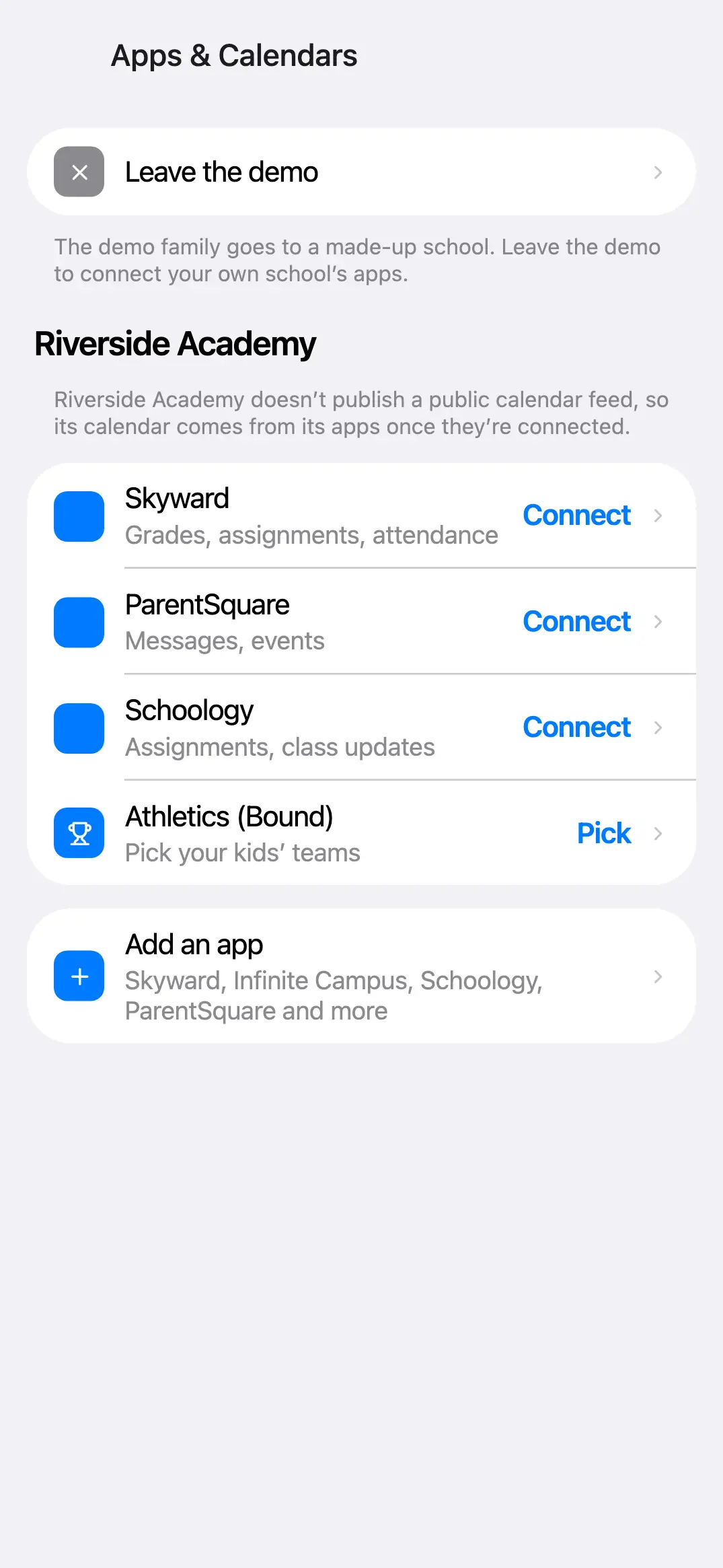
- Open Settings → Apps & Calendars, pick the app and connect it again.
- Logins that need a security code, or that sign in through Google or Microsoft, can’t be connected yet. The app still appears as a link so it’s one tap away.
If Minivan offers a Diagnostic Report for an app that stopped working, it reads the app once more and writes down only the shape of the data (field names and types, never names, grades or logins). You see all of it first, and nothing is sent unless you tap Share.
Grades, posts or games look out of date
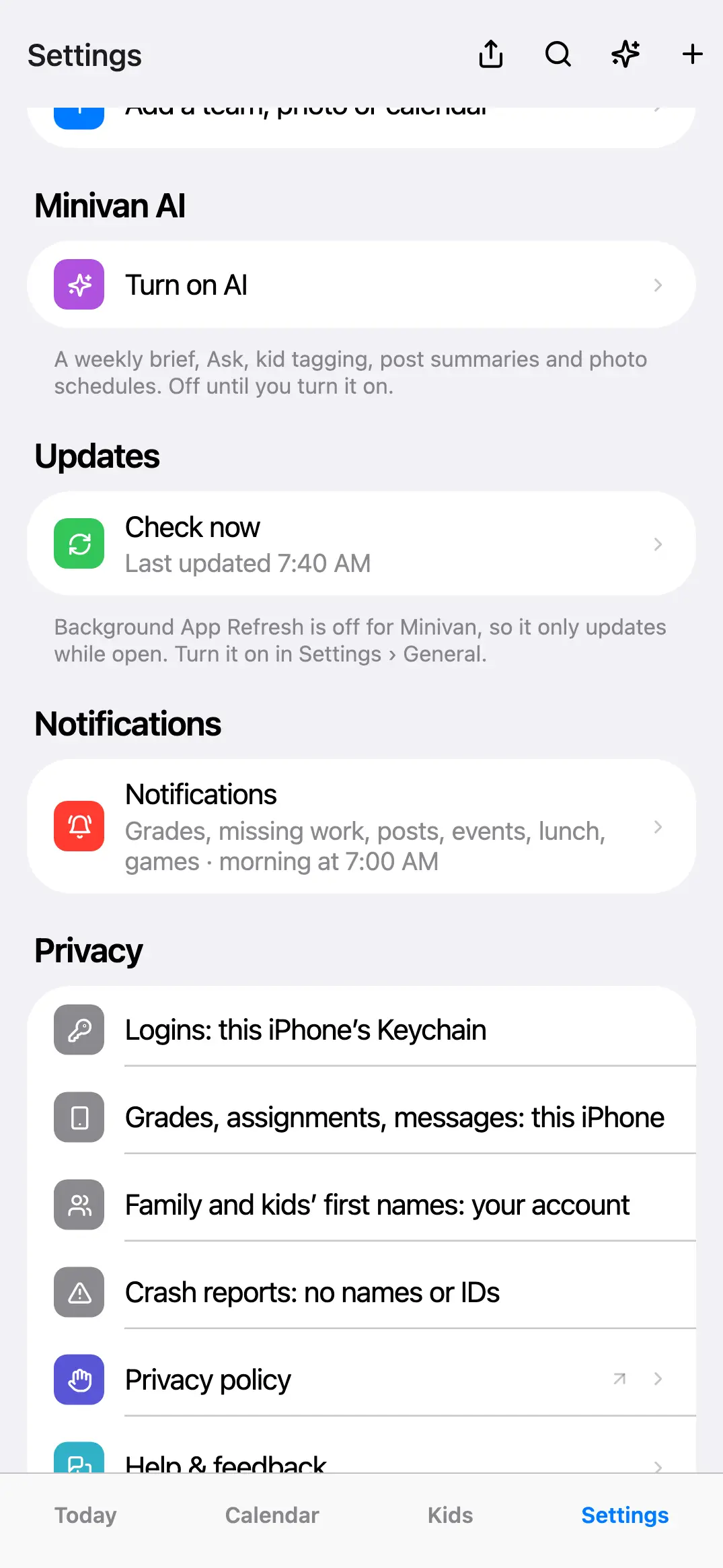
- Pull down on Today or tap Update. Or open Settings → Updates → Check now.
- Turn on Background App Refresh: iPhone Settings → General → Background App Refresh, on for Minivan. When it’s off, Settings in Minivan says so and Minivan only updates while it’s open.
- Low Power Mode pauses background updates. Open Minivan once to catch up.
Notifications don’t come
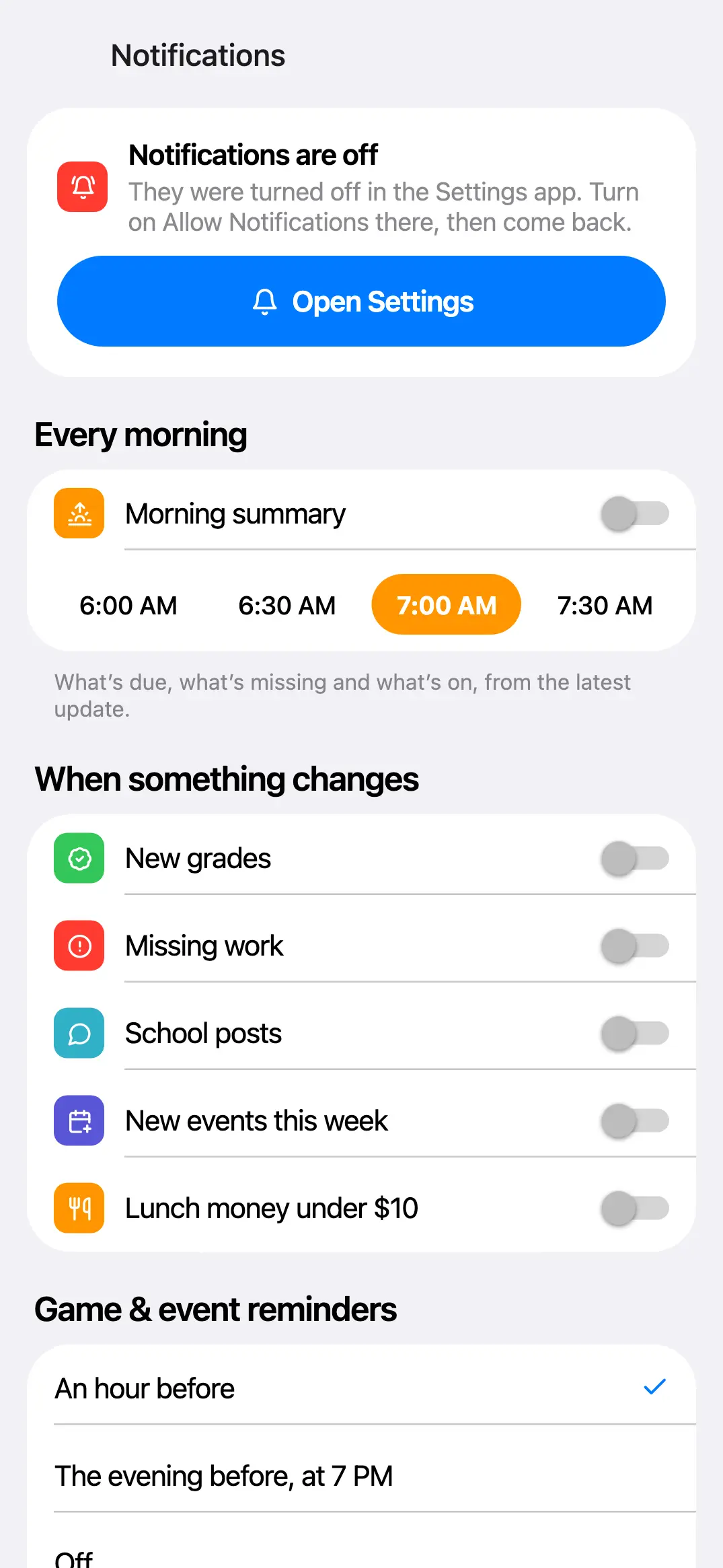
- In Minivan, open Settings → Notifications. If it says Notifications are off, tap Open Settings and turn on Allow Notifications.
- Turn on the ones you want: the morning summary, new grades, missing work, school posts, new events, lunch money and game reminders.
- Under Alerts for, check that each kid you want alerts about is selected.
- Tap Send a test notification. If the test arrives but real alerts don’t, turn on Background App Refresh (above): alerts are worked out on your iPhone after each update.
- A Focus mode (Sleep, Work) can hold notifications. Allow Minivan in that Focus, or check Notification Center.
The other parent can’t see our family
- They need to sign in with the exact email you invited. If they signed in with another address, have them sign out and sign in again with the invited one, or send a new invite to the address they use.
- If the invite says That invite isn’t open anymore, send a new one from Settings → Invite the other parent.
- Each parent connects school apps with their own login on their own iPhone; school logins are never shared.
My subscription isn’t recognized
- Open Settings → Restore purchases, signed in to the App Store with the Apple Account that paid.
- If the other parent paid, make sure you’re signed in to the same family account (Settings shows your family’s name). Their subscription unlocks your iPhone.
- With Ask to Buy, the subscription starts only after it’s approved.
A team’s schedule is missing or wrong
Open Settings, tap the team, and check who it’s for and that its link still works. Team apps sometimes change their calendar link; copy the current one from the team’s app and add it again. See Add a sports team from any app.
My iPhone calendars don’t show
Tap + (or Settings → Add a team, photo or calendar) → Include iPhone calendars. If it asks for access, open the iPhone Settings app → Minivan → Calendars and allow Full Access, then pick the calendars to include.
Something else
Update Minivan from the App Store, then close and reopen it. If the problem stays, send it from Settings → Help & feedback (signed in) or email support@getminivan.com with your iPhone model, iOS version and what you tapped. See Get help or send feedback.
← All help · FAQ · Questions? support@getminivan.com