Sports
Scan a schedule into events
Take or pick a photo of any schedule; Minivan reads the dates and times, you check them, and they’re added.
Updated November 20, 2026
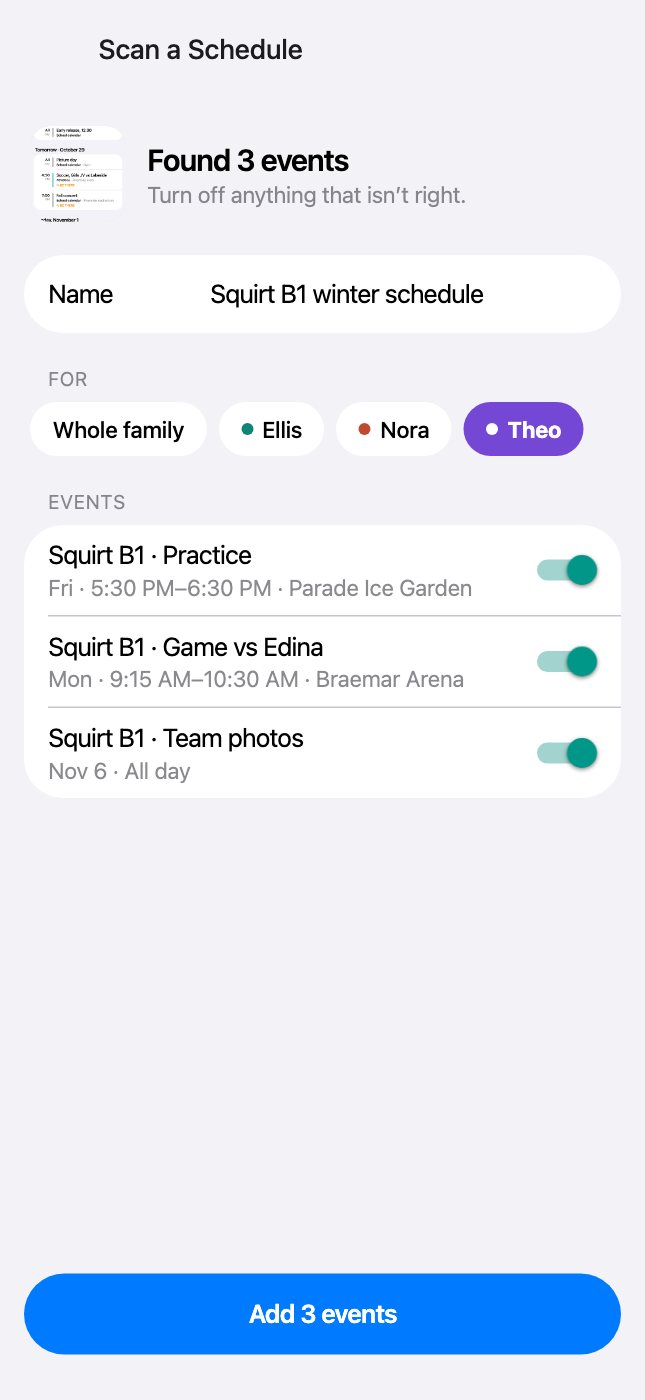
How it works
- Tap the camera in Ask, or + → Scan a schedule, or Sports Teams → From a screenshot or photo.
- Take a photo or choose a screenshot. Add a hint if it helps (“only the Squirt B1 rows”).
- Minivan AI reads every event: title, date, time and place. Switch off any it got wrong and set who it’s for.
- Tap Add. The events join your calendar like any other team’s.
Also add them to your iPhone calendar
Turn on “Also add to my iPhone calendar” and pick a calendar (iCloud, Google or Outlook on your iPhone). The events are written there too, so they show up everywhere you look.
Good to know
- Needs Minivan AI turned on (Settings → Minivan AI). The photo is sent to read it and isn’t kept.
- Works best with a clear, straight photo or a screenshot.
- A photo schedule doesn’t update itself. When the team has a calendar link, add that too.
← All help · FAQ · Questions? support@getminivan.com